
Microsoft Teams has become a widely adopted platform for team collaboration, offering various features to enhance communication and productivity. One of the key functionalities in Teams is the ability to create channels, which serve as dedicated spaces for specific topics, projects, or departments. By default, channels are set to “public,” meaning that anyone within the team can join and access the channel. However, there are instances where you may need to convert a public channel to “private” to restrict access and ensure sensitive information remains confidential. In this article, we will guide you through the simple steps to convert public channels to private in Microsoft Teams.
Why convert public channel to private : Use cases
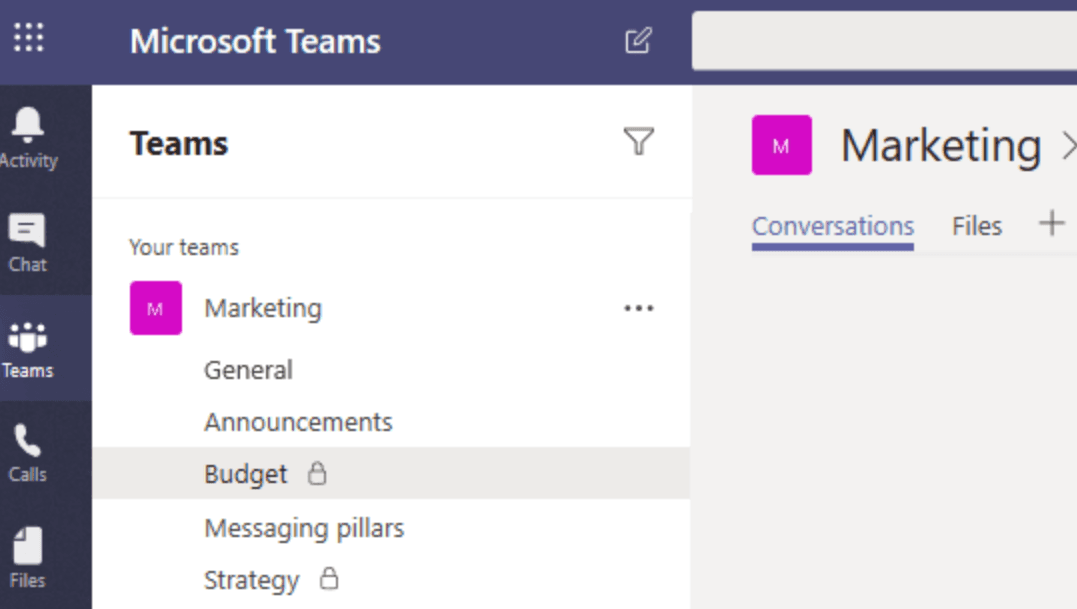
Public channels are ideal for open collaboration and information sharing within a team. However, there are scenarios where you may require more granular control over channel access. Here are a few reasons why converting public channels to private can be beneficial:
- Certain projects or topics may involve sensitive information that should only be accessible to a select group of team members. By converting a public channel to private, you can limit access to authorized individuals, ensuring confidentiality.
- Some channels may require collaboration among a specific set of team members, such as managers, executives, or department heads. Converting a public channel to private allows you to restrict participation and keep discussions focused within the designated group.
- In regulated industries or organizations with strict data privacy policies, converting public channels to private can help ensure compliance. By controlling access, you can prevent unauthorized individuals from accessing sensitive data or discussions.
How to Convert Public Channels to Private with Team Master ?
Converting public channels to private in Microsoft Teams is a simple process that can be done in a few easy steps. Here’s a guide to help you through the process:
Step 1: Sign in to the Team Master platform and navigate to the team housing the channels you intend to convert to private. Once there, click on the “Manage” option.
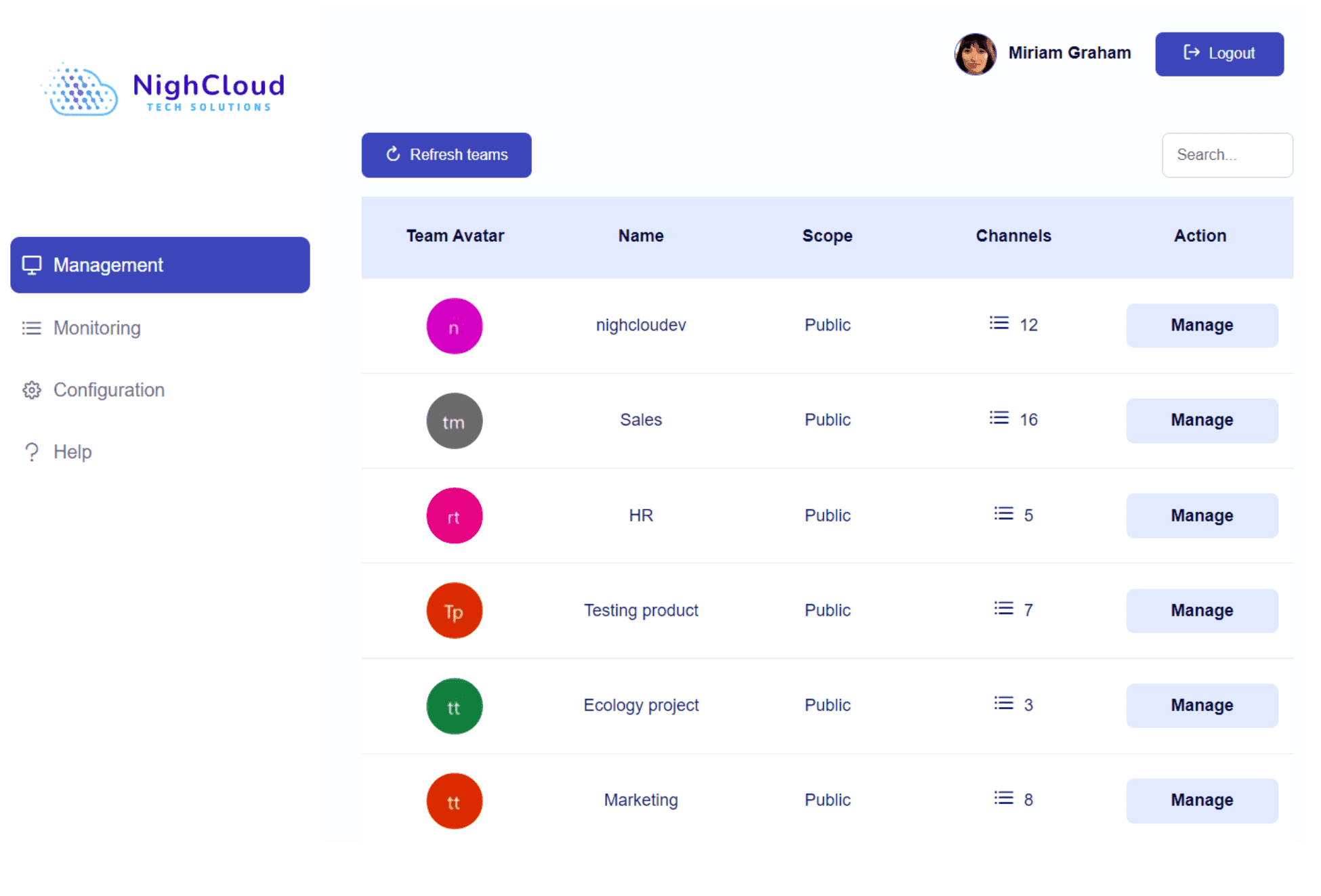
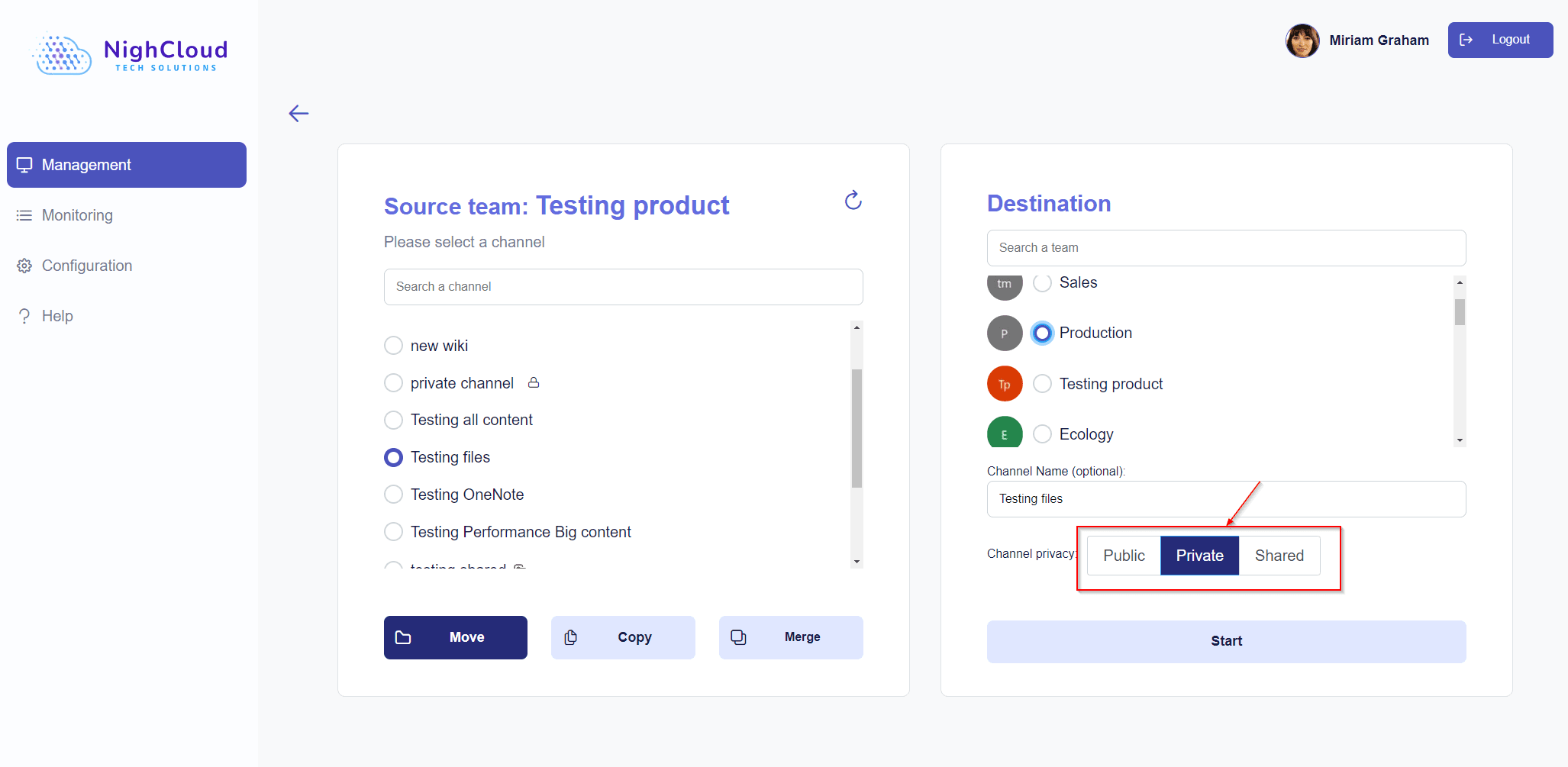
Step 2: Identify the public channel you wish to convert to private and proceed by selecting the “Move” feature. (Don’t worry; in the next steps, you will understand that we are not actually performing just a move operation as you might think).
Step 3: Now, you have the choice. In addition to converting it to private, you can move it to another team by selecting the destination team. If you want to leave it in the same team, just choose the current team.
Step 4: Choose the privacy of the channel to “Private”; this is the most important part of the operation! It will transform the public channel into a private one.
That’s all it takes! By harnessing the power of Team Master, the designated channel will be seamlessly converted to a private channel.
Advantages of Converting Public Channels to Private
By converting public channels to private, you can control who has access to sensitive information, ensuring it remains confidential and protected. This level of control is especially valuable for discussions that involve proprietary data, confidential client information, or internal strategic plans. Private channels allow for more focused collaboration within specific groups, streamlining discussions and minimizing distractions from unrelated conversations.
For organizations that need to comply with regulations or internal governance policies, private channels provide a way to manage access and protect sensitive data effectively. By designating certain channels as private, businesses can ensure that only authorized individuals have visibility and participation rights. This capability helps maintain compliance with industry standards, data protection regulations, and internal security protocols.
Private channels enable targeted communication and information sharing among team members working on specific projects, making it easier to exchange relevant data and updates. By restricting access to relevant stakeholders, you can ensure that discussions and resources are accessible to those who need them most. This targeted approach fosters efficiency and collaboration within teams, enhancing productivity and project outcomes.
Moreover, private channels allow for granular control over permissions, ensuring that only authorized individuals can view and participate in discussions, upload files, or access channel resources. This level of control is beneficial when working on sensitive projects that require strict confidentiality or when collaborating with external partners or clients who need restricted access to specific information. By setting precise permissions, you can protect sensitive data and maintain a secure environment for communication and collaboration.
At NighCloud, security is at the core of everything we build. Learn why NighCloud prioritizes security and how our commitment to data protection helps businesses maintain compliance and confidentiality.
Why Choose Team Master for Channel Management ?
While Microsoft Teams offers the ability to convert public channels to private, managing multiple teams and channels within the platform can sometimes be challenging. This is where NightCloud’s Team Master comes in. Choosing Team Master for channel management offers several advantages. Firstly, Team Master provides an intuitive and user-friendly interface, making it effortless to manage multiple teams and channels within Microsoft Teams. Secondly, NightCloud’s commitment to exceptional support ensures that you receive personalized assistance and prompt resolution of any issues you may encounter. Additionally, Team Master offers a cost-effective solution, allowing businesses to maximize efficiency without straining their budget. With its powerful features and affordable pricing, Team Master stands out as the ideal choice for efficient and effective channel management in Microsoft Teams.
Ready to enhance your channel security? Explore Team Master security features including private channel conversion, access control, and compliance management. See our pricing plans starting at $399.
Conclusion
Converting public channels to private in Microsoft Teams is a straightforward process that provides enhanced privacy and control over discussions and resources. By following the steps outlined in this article, you can easily convert a public channel to private, restricting access to a select group of individuals. Private channels offer numerous benefits, including confidentiality, focused collaboration, compliance, project-specific communication, and granular permissions control.
If you’re looking for an efficient way to manage your teams and channels within Microsoft Teams, see our pricing plans or schedule a demo to test Team Master’s security features in our environment.
