Microsoft Teams has no built-in way to move a channel from one team to another. You can move the channel’s files by hand, but its conversations, tabs and members stay behind.
Team Master moves the whole channel in a few clicks: messages, files, tabs and members arrive together in the destination team. Below: what Teams lets you do by hand, then the steps with Team Master.
Can you move a channel to another team in Microsoft Teams?
Not natively. In Teams, a channel belongs to the team it was created in, and its conversations, files and permissions are tied to that team. There is no command to move or migrate a channel to another team, in the Teams app or in the Teams admin center. Microsoft’s documentation states it plainly for private channels: a private channel “can’t be moved to a different team”.
What you can do by hand is create a new channel in the other team and bring part of the content over:
- Files: yes. In the old channel, open the Shared tab (called Files in earlier versions of Teams), hover over a file, select More options, then Move to, and choose the new channel. Microsoft describes the steps in Move or copy files in Microsoft Teams.
- A single post: only as a copy. Open More options on the post and choose Forward to send a copy to the new channel. The original and its replies stay where they are.
- Tabs, apps and members: no. You recreate the tabs and apps, and add the members again if the channel is private or shared.
- Conversation history: no. It stays in the old channel, which you can archive to keep it readable.
That is enough for a small channel when only the files matter. When the conversation history matters too, you need a tool that moves the channel itself.
| What you need to keep | By hand in Teams | With Team Master |
|---|---|---|
| Files | Moved by hand, one channel at a time | Moved with the channel |
| Conversation history | Stays in the old channel | Moved, each message labeled with its original author and date |
| Tabs and apps | Recreated one by one | Moved with the channel |
| Private channel members | Added again by hand | Kept, with their permissions |
| Several channels | One at a time | Moved in a single operation |
How to move a channel from one team to another with Team Master
Team Master is a web app for Microsoft 365 admins. It works through the Microsoft Graph API, so there is nothing to install in Teams. To move a channel:
- Sign in to Team Master with your Microsoft 365 account. The first time, a global administrator approves the app for your organization.
- Open the source team. On the Management page, find the team that holds the channel and click Manage.
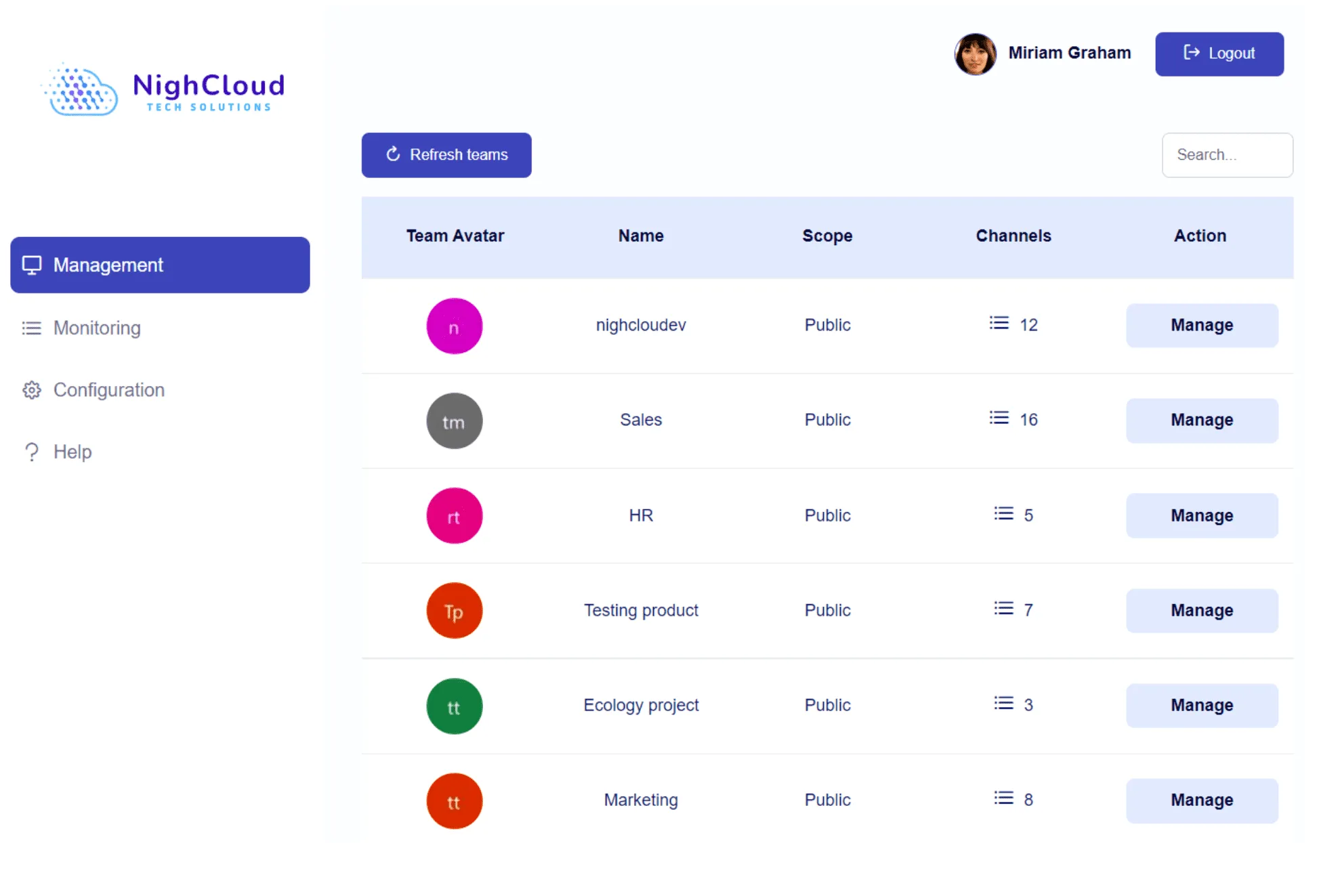
- Select the channel you want to move, then click Move.
- Choose the destination team. You can also rename the channel and set its privacy: Public (a standard channel), Private or Shared.
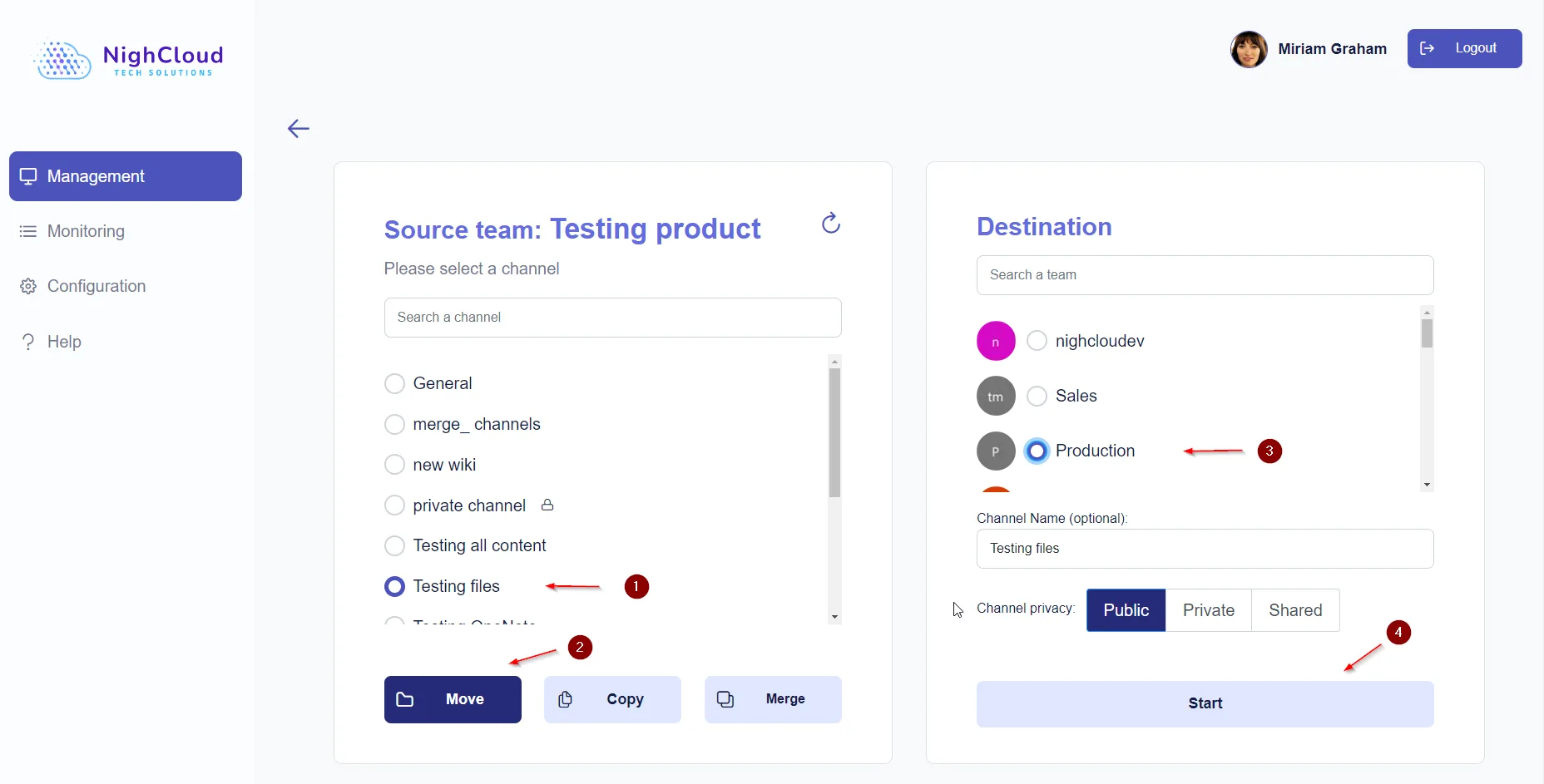
- Click Start. Team Master moves the channel and its content. You can follow the operation on the Monitoring page.
A move usually takes about 5 to 10 minutes. Very large channels can take around 30 minutes.
What moves with the channel
A move with Team Master carries the channel’s content to the destination team:
- Messages. The channel’s conversation history, with its images and emojis. Each message is labeled with its original author and date.
- Files. The documents shared in the channel.
- Tabs and apps. The channel’s tabs and apps, OneNote notebooks included.
- Members and permissions. A private channel keeps its members and their permissions.
Team Master does not store the content of your channels. It only keeps the names of your teams and channels, to display them in its interface.
Want to see it on a real channel? Book a demo: we give you access to our demo environment for a few days, or walk you through Team Master on a call.
Who can see the channel after the move
A standard channel is open to every member of its team. Once it is moved, access follows the destination team: everyone in that team can see the channel, and people who were only in the old team no longer can.

That is what you want when a channel was created in a team that is too wide, like a contracts channel sitting in a company-wide team. In the other direction, take a moment before you move a sensitive channel into a larger team: more people will see it.
Moving a private channel to another team
A private channel has its own members, a subset of the team, and Teams can’t move it either. Team Master moves private and shared channels the same way as standard ones, and keeps their members and permissions.
Changing the channel type during the move
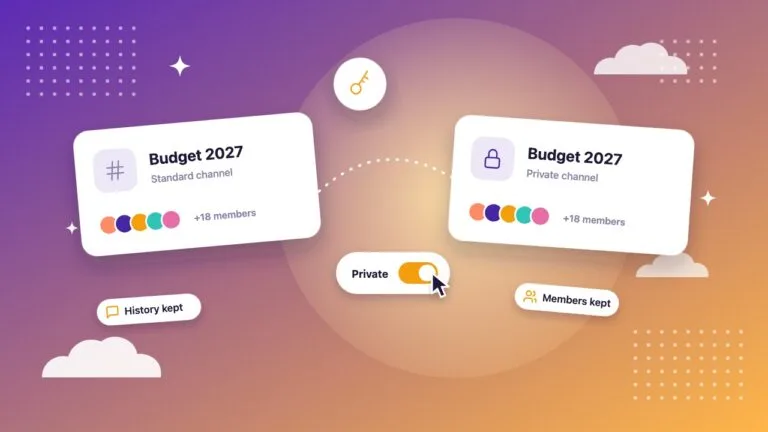
The move screen lets you choose the privacy of the channel in the destination team. You can keep the same type, or use the move to change it: a standard channel can arrive as a private one, for example. Teams itself can’t change the type of an existing channel. See how to convert a public channel to private and how standard, private and shared channels differ.
Move, copy or merge: which one do you need?
Moving is one of several ways to reorganize channels. Pick the operation that matches the result you want:
- Move the channel when it belongs in another team and should leave its current one.
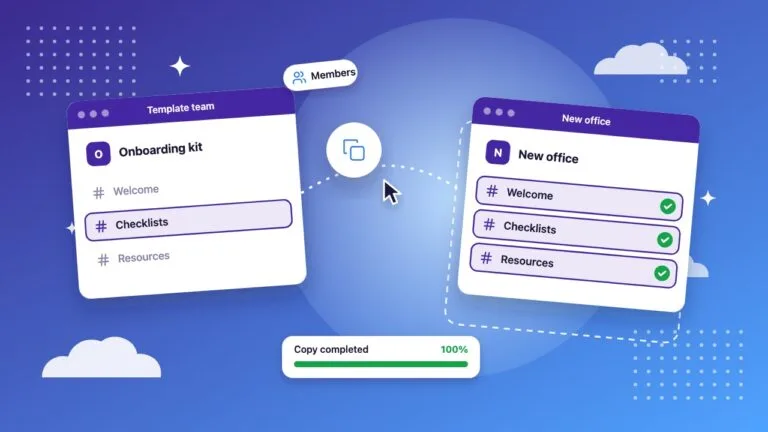
- Copy it when the original must stay in place and a second team needs the same channel. See how to copy a channel to another team.
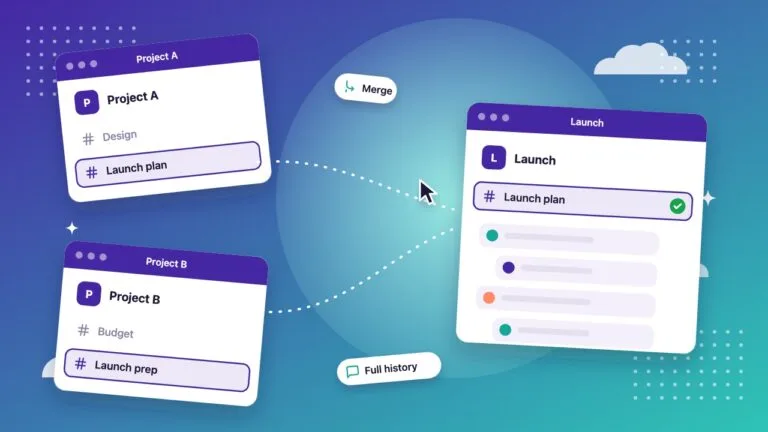
- Merge it when two channels cover the same subject and should become one. See how to merge two Teams channels.
Before you move a channel
- Check who will see it. A standard channel becomes visible to the whole destination team.
- Check the name. If the destination team already has a channel with the same name, give the moved channel a new one in the move screen.
- Tell the members. Say when the move happens and where they will find the channel afterwards.
- Start with one channel. Move it, check the result with its members, then move the others in a single operation.

The NighCloud team builds Team Master, the Microsoft Teams channel management tool for IT admins.