
In today’s fast-paced business environment, effective team collaboration is essential for success. One common challenge faced by teams using Microsoft Teams is the ability to copy a team channel to another team seamlessly. Fortunately, with the help of NighCloud’s Team Master, this process becomes a breeze. In this article, we will explore the importance of copying team channels, discuss who would benefit from this feature, evaluate Microsoft’s solutions, and provide a step-by-step guide on how to copy a team channel to another team using Team Master.
Why is it important ?
Efficient collaboration often requires sharing information and knowledge across teams. By copying a team channel to another team, you ensure that valuable discussions, files, and documents are easily accessible to the relevant members. This feature eliminates the need to recreate content or go through the hassle of manually transferring information, saving time and minimizing the risk of miscommunication.
Wondering whether to copy or move? Copying preserves the original channel, while moving transfers it entirely. Learn when to move channels to another team instead based on your specific use case.
 Who would need it ?
The ability to copy team channels is beneficial for a wide range of individuals and organizations. Project managers who oversee multiple teams can efficiently distribute relevant information without duplicating efforts. Teams collaborating on similar projects can leverage existing channels, fostering knowledge sharing and synergy. Furthermore, companies with a complex organizational structure can ensure that information flows seamlessly between departments and teams.
Is Microsoft solving this issue ?
While Microsoft Teams offers a robust collaboration platform, the native functionalities do not include a direct option to copy a team channel to another team. This limitation can hinder productivity and hinder efficient workflow management. Recognizing this gap, NightCloud’s Team Master steps in as an innovative solution to empower users with the ability to seamlessly copy team channels between different teams.
How to Copy a Team Channel to Another Team with Team Master
Step 1: Sign in to Team Master
To begin, log in to your Team Master account. If you don’t have an account yet, you can easily sign up on the NightCloud website.
Step 2: Access Team Master’s Channel Management
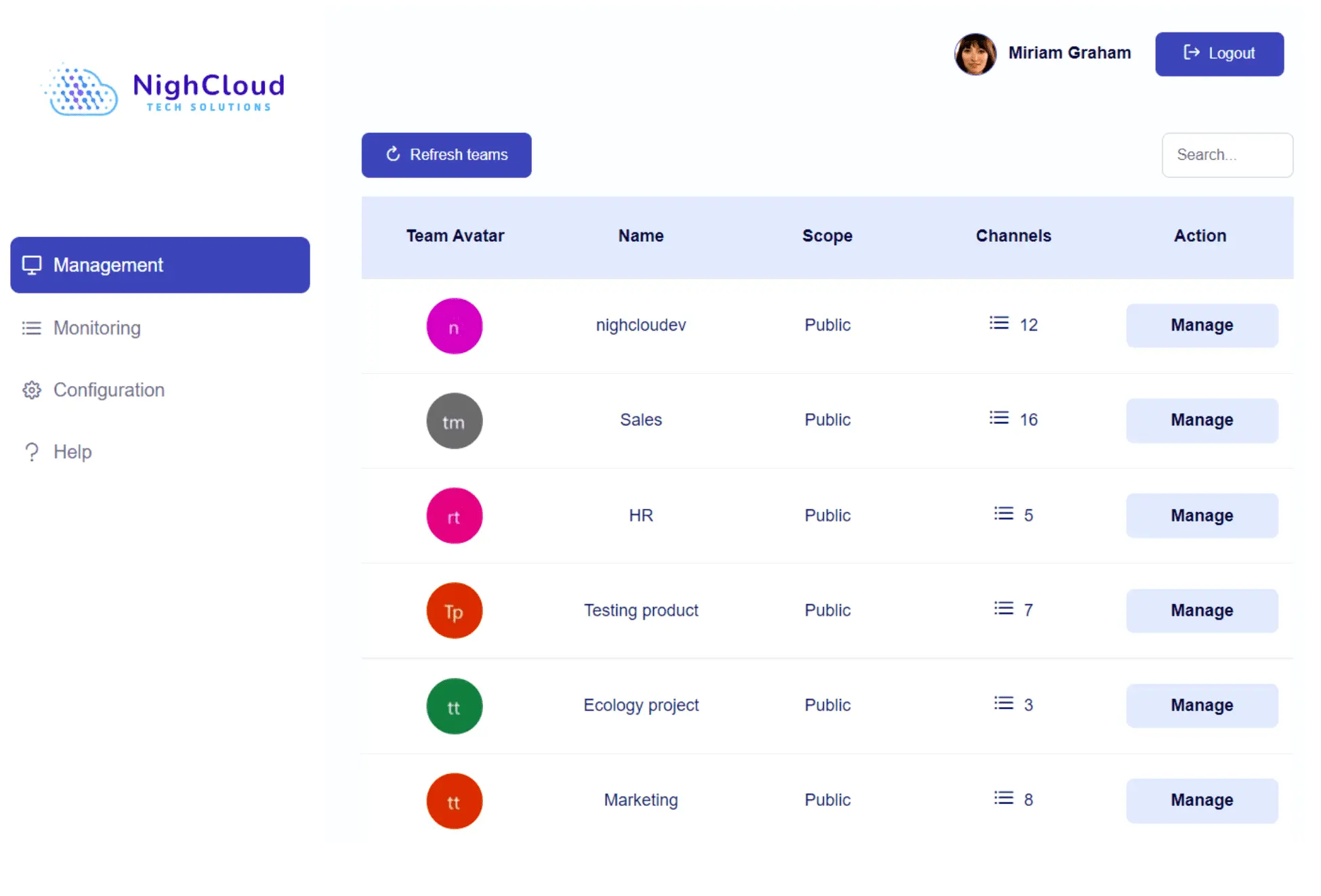
Once logged in, navigate to Team Master’s Channel Management feature. This user-friendly interface provides a comprehensive overview of all your teams and channels within Microsoft Teams.
Navigate to the team that contains the channels you want to archive and select “Manage”.
Step 3: Select the Channel to Copy
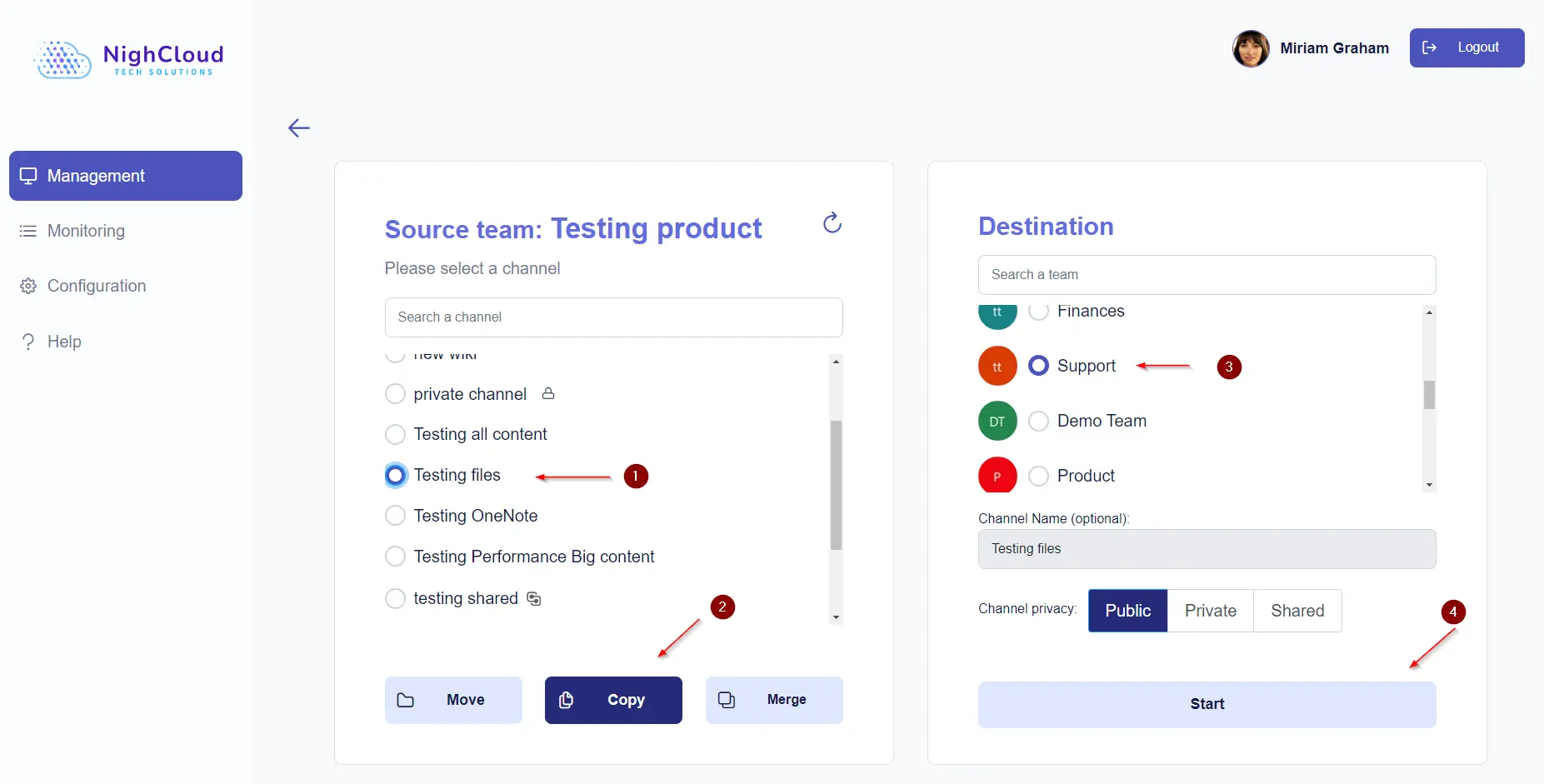
Within the selected source team, locate the specific channel you wish to copy. Team Master presents a clear list of channels, making it easy to identify the one you need.
Then, choose the channel you wish to copy and click on the “Copy” option.
Next, select the destinationteam in which you want to copy the chosen channel and click “Start” to initiate the archiving process.
Team Master will begin replicating the channel, including all messages, files, and settings, to the designated destination team.
Step 4: Verify the Copy
After the copying process is complete, Team Master will notify you. Take a moment to verify that all the content has been successfully duplicated in the destination team.
Ready to streamline your channel copying process? See pricing for copy features starting at $399 for short-term licenses, or explore our flexible plans for teams managing multiple channel operations.
In short, effective team collaboration depends on the ability to share information and resources seamlessly between teams. With NighCloud’s Team Master, the process of copying a team channel to another team becomes a straightforward task. By leveraging Team Master’s intuitive interface and comprehensive features, businesses can streamline their workflows and maximize efficiency.
Don’t let limitations in native Microsoft Teams functionalities hinder your collaboration potential. See our pricing plans or schedule a demo to test Team Master’s channel duplication features.
Need to copy bulk channels across multiple teams? Contact our sales team for personalized solutions tailored to your organization’s unique needs and scale.
Common Challenges When Copying Teams Channels
- Data Volume
- Permission Conflicts
- App and Tab Dependencies
- Member Access
