

Microsoft Teams is a popular collaboration platform that allows teams to work together, communicate, and share information. One of the key features of Teams is the ability to create channels, which are essentially discussion forums that can be used to organize conversations, files, and other resources related to a specific topic. While channels are a great way to keep information organized, sometimes it makes sense to merge two channels together.
In this article, we’ll explore why you might want to merge channels in Teams and how to do it using Team Master.
Why is this functionality important ?
Merging channels can help simplify team collaboration and improve efficiency. Instead of having to navigate between multiple channels, team members can focus on a single channel that contains all the relevant information. This can help reduce confusion and ensure that everyone is on the same page. Additionally, merging channels can help avoid redundancy and eliminate the need to duplicate information across multiple channels.
Why Merge Two Microsoft Teams Channels ?
There are many reasons why you might want to merge two Microsoft Teams channels. For example, your team may have created multiple channels related to the same project, and it makes more sense to consolidate them into one channel. Or, you may have created separate channels for different departments within your organization, and now you want to merge them into one channel to improve communication and collaboration.
Whatever your reasons for merging channels, it’s important to know how to do it properly. Before merging, consider how to organize your Teams channels for optimal structure — this ensures your workspace stays efficient even after consolidation.
5 Common Challenges When Merging Channels
- Data Integrity
Ensuring all messages, files, and tabs are preserved during the merge. Manual processes risk data loss. - Permission Management
Handling conflicting permissions between source and target channels. Team Master automatically resolves permission conflicts. - Chat History
Continuity Maintaining conversation threads and search ability after merge. Native Teams doesn’t support this.
- Planning and Testing
Merging is irreversible, so proper planning is critical. You need to verify member lists, permissions, and content structure before committing to the merge.
Is it possible to merge channels in Microsoft Teams ?
Unfortunately, no, Microsoft Teams does not currently offer this functionality due to its architecture. As a result, administrators may face difficulties in managing different departments that wish to merge their projects and work together as a unified team. Additionally, you cannot move a channel to another existing group within the platform. To overcome this limitation, it is recommended to utilize a third-party governance solution to streamline management and improve efficiency.
How To Merge Channels Using Team Master
Team Master is a powerful platform that can help you merge channels in Microsoft Teams quickly and easily. Here’s how to do it:
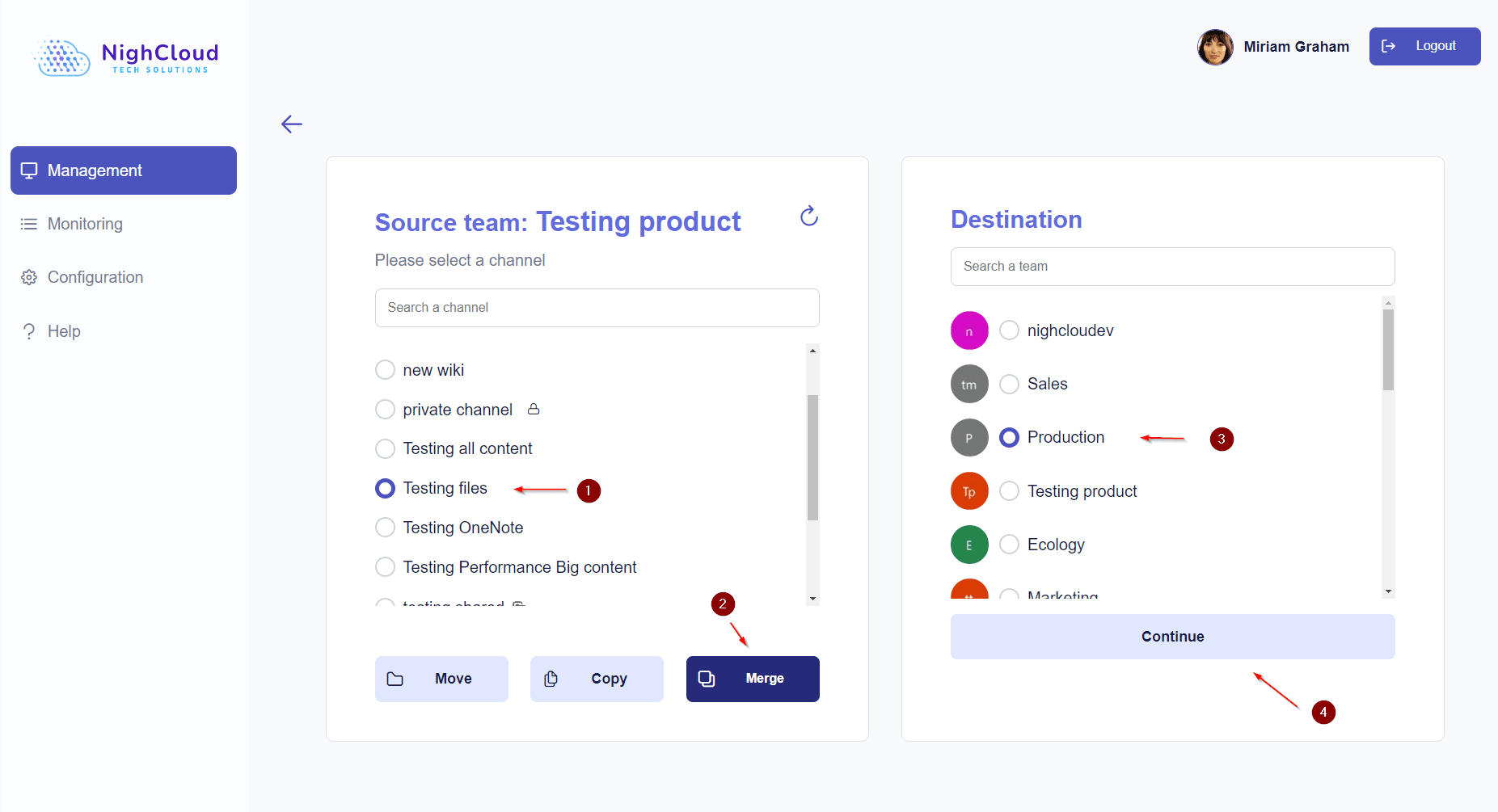
- First, log in to Team Master and navigate to the team that contains the channels you wish to merge. From there, select “Manage”.
- Next, choose the channel you want to merge and click on the “Merge” option.
- Then, select the team you want to merge the chosen channel into and click “Continue”.
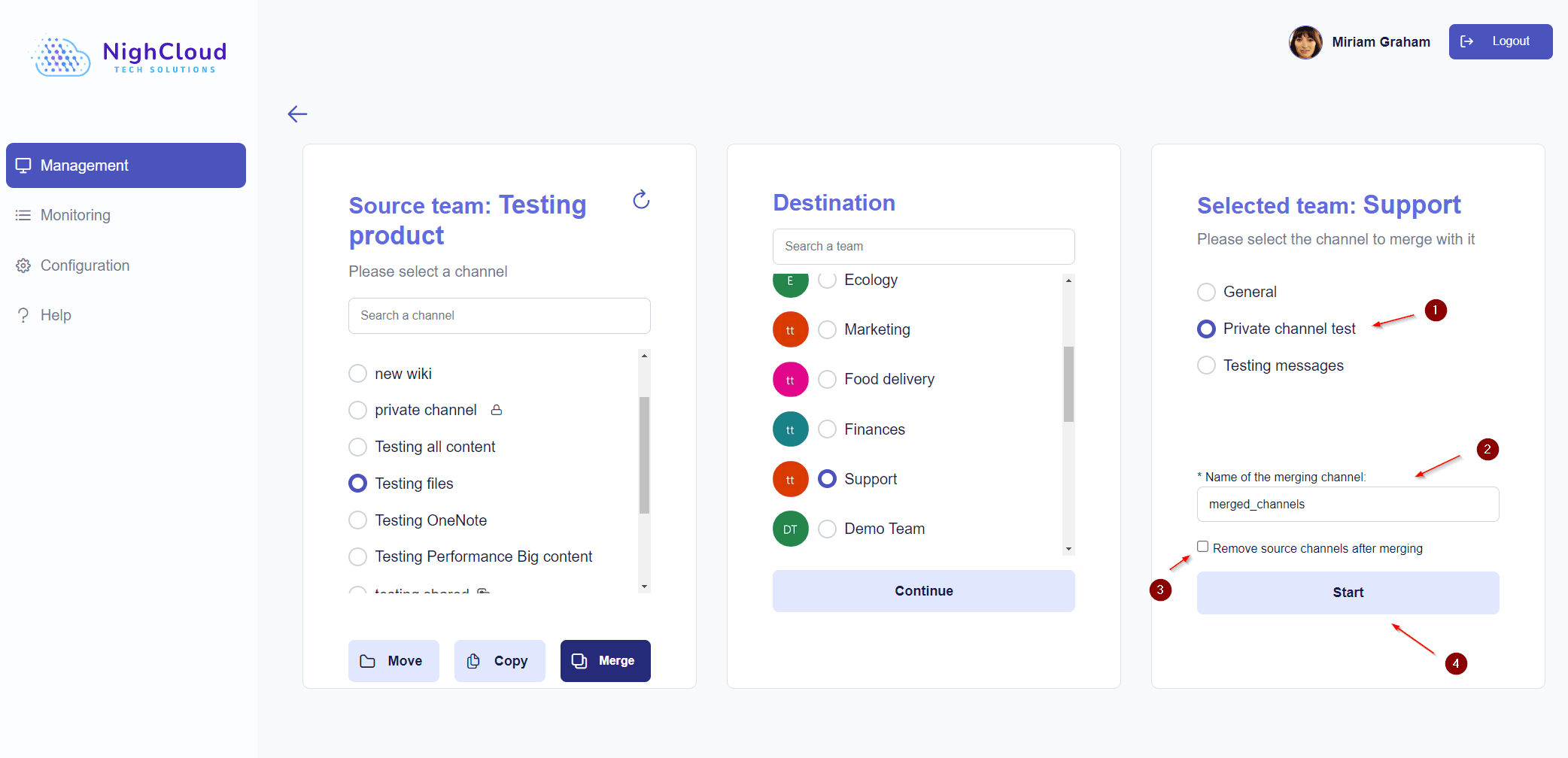
- Select the channel you want to merge with and provide a name for the new merged channel.
- If you want to delete the original source channels after merging, simply select the checkbox labeled “Remove source channels after merging”.
- Finally, click “Start” to begin the migration process.
And that’s it! Team Master will automatically merge the selected channels and move or copy the messages and files to the new merged channel.
Why Team Master ?
Team Master offers a range of features that make it a valuable tool for Microsoft Teams users. In addition to the ability to merge channels, Team Master also allows users to copy, move, and archive channels, making it easy to manage multiple teams and channels. The platform also offers exceptional support from a team of dedicated professionals, ensuring that users always have the help they need.
Frequently Asked Questions
Can I merge private channels?
Yes, Team Master supports merging standard, private, and shared channels. Permissions are preserved during the merge.
Can I un-merge merged channels?
No, merging is irreversible. Once channels are merged, they cannot be separated. However, you can delete the merged channel if you no longer need it.
What happens to chat history?
All chat history, files, tabs, and channel data are merged into the target channel. Conversation threads remain searchable.
How long does a merge take?
Most channel merges complete in 5-10 minutes, depending on channel size. Large channels (1,000+ messages) may take up to 30 minutes.
Can I merge channels from different teams?
Yes, you can merge channels across different teams. This is useful during organizational restructuring.
What if the merge fails?
Team Master provides detailed error logs and automatic rollback. Our 24/7 support team can assist with any issues.
Is there a limit on channel size?
No, Team Master can merge channels of any size. We’ve successfully merged channels with 10,000+ messages and 5GB+ of files.
If you’re looking to streamline your team’s workflow and improve collaboration in Microsoft Teams, try Team Master today. With its affordable pricing, intuitive interface, and powerful features, Team Master is the perfect solution for businesses of all sizes.
Ready to get started? See our flexible pricing plans starting at $399. Schedule a demo to test Team Master in our environment first.
