
Microsoft Teams has become a vital tool for businesses of all sizes, providing an all-in-one platform for communication and collaboration. With the increasing use of Teams, it is essential to have a system for organizing and managing channels. Archiving channels is a useful way to keep your team’s work organized and searchable, but it can be challenging without the right tools. In this article, we will provide a step-by-step guide on how to archive Microsoft Teams channels and highlight the importance of using Team Master to streamline the process.
Why Archive Microsoft Teams Channels ?
There are many reasons why you might want to archive a Microsoft Teams channel. Perhaps you have a channel that is no longer in use, but you still need to reference the information in it from time to time. Or maybe you have a project or team that has been completed, and you want to keep the channel as a reference for future projects.
Regardless of the reason, archiving a channel can help you keep your Microsoft Teams environment organized and make it easier to find the information you need.
Before archiving channels, it’s essential to have a clear organization strategy. Learn best practices for organizing channels to ensure you’re archiving the right channels at the right time and maintaining a clean workspace.
Understanding Microsoft Teams Channel Archiving
Before we dive into the process of archiving channels, let’s first understand what it is and why it’s important. Channel archiving is the process of moving an inactive channel to an archive folder, making it read-only and preventing new messages from being posted. This action helps keep your active channels clutter-free and easily searchable.
Archiving channels also helps maintain data compliance by preserving important information for future reference. In addition, archived channels can still be accessed by team members for review or reference, even if they were not part of the original conversation.
What Happens When a Channel is Archived ?
When you archive a channel in Microsoft Teams, the channel is removed from the main channel list and moved to the “Archived” team. The channel and its content will still be accessible, but it will no longer be visible in the main channel list unless you choose to un-archive it.
When a team is archived, certain limitations and conditions apply:
- It can be restored at any time.
- All activities, such as conversations and meetings, are suspended.
- Members can still be added or removed from the team.
- Member roles can be modified.
Differences Between Archiving and Deleting Channels
It’s important to note that archiving a channel is not the same as deleting it. When you delete a channel, all of the content in that channel is permanently deleted, and it cannot be recovered.
Archiving a channel, on the other hand, simply moves the channel to the “Archived” section and preserves all of the content within it. This makes it easy to access the information in the channel at a later time, without the risk of losing any important data.
Team Master : A Solution for Archiving Microsoft Teams Channels
NighCloud provides a powerful tool called Team Master, which allows you to efficiently reorganize your teams and channels in Microsoft Teams. With features like the ability to move, copy, merge, and archive, Team Master streamlines your team’s workflow and enhances productivity.
In addition to unparalleled support, Team Master offers personalized solutions to meet your unique needs. Whether you need help setting up your account, customizing your settings, or troubleshooting an issue, our team of dedicated professionals is always ready to help.
Ready to streamline your archiving process? See pricing for archiving features starting at $399 for short-term licenses, or explore our flexible plans for teams of all sizes.
Using Team Master to Archive a Channel
Now that we’ve highlighted the benefits of using Team Master let’s walk through how to use it to archive a channel in Microsoft Teams.
- To begin, log in to your Microsoft Teams and create a new Team named “Archive”, or whatever name you want for your archive team.
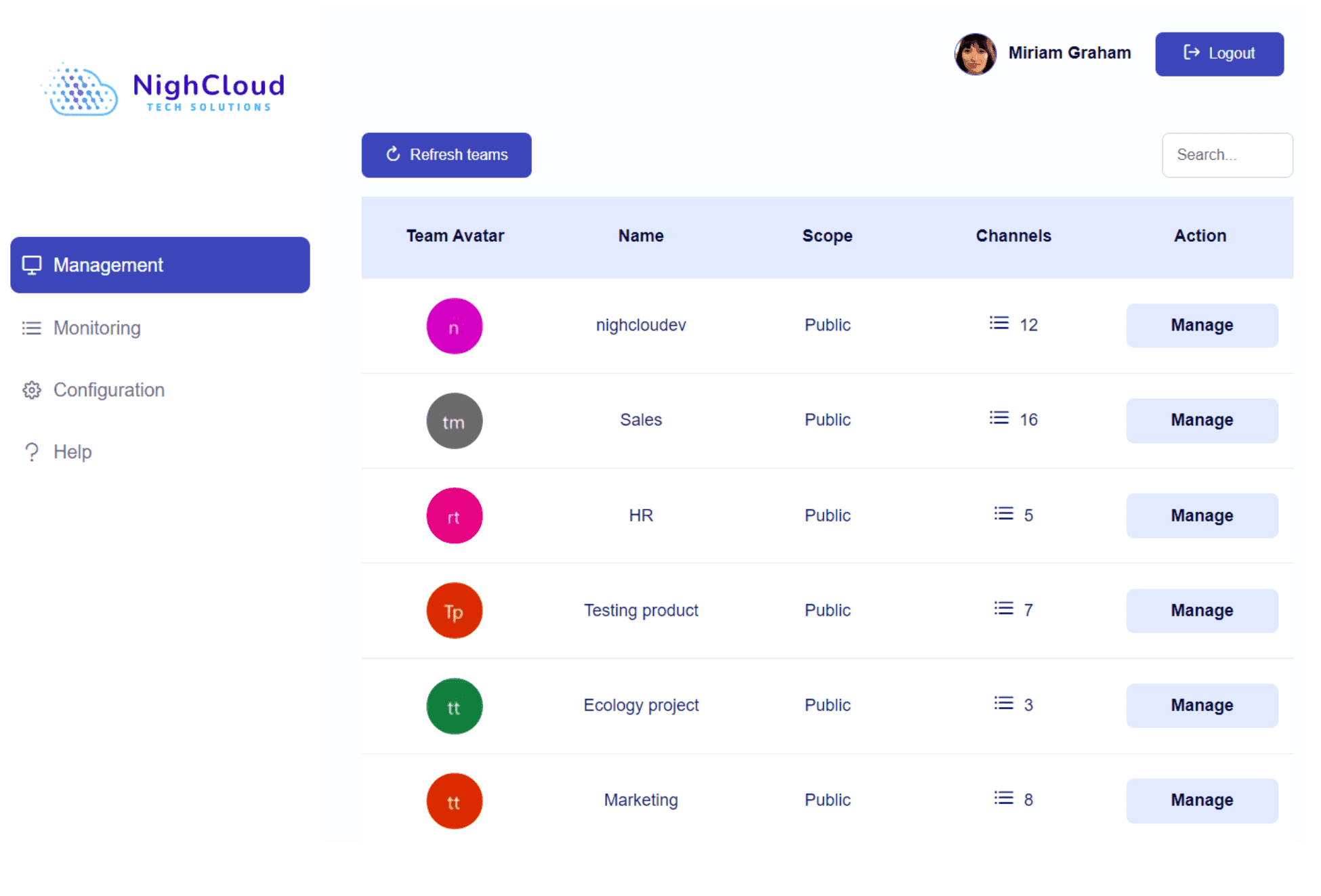
- Next, log in to the Team Master app and navigate to the team that contains the channels you want to archive and select “Manage”.
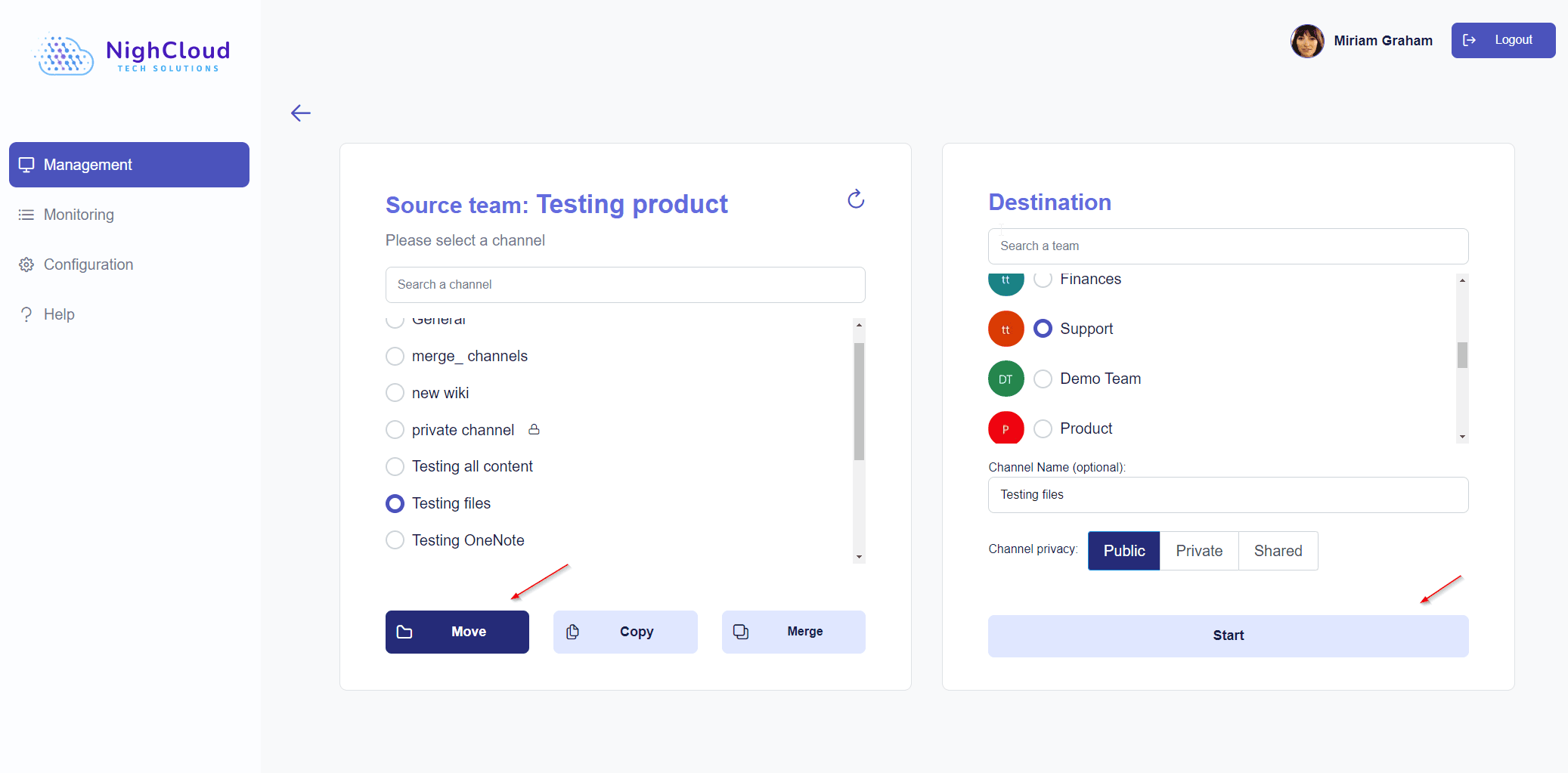
- Then, choose the channel you wish to archive and click on the “Move” option.
- Next, select the archive team in which you want to archive the chosen channel and click “Start” to initiate the archiving process.
Is it possible to search for archived channels in Team Master?
Yes, the Archive team will be like any other team.
Can I unarchive channels that have been archived in Team Master?
Yes, it is possible to unarchive a channel by moving it back to its original team with Team Master.
If you’re ready to streamline your team’s workflow and simplify channel archiving in Microsoft Teams, see our pricing plans or schedule a demo to test Team Master in our environment.
Need help archiving bulk channels or managing large-scale migrations? Talk to our sales team for personalized guidance and solutions tailored to your organization’s needs. .

Jonathan is a Microsoft Teams migration specialist at NighCloud with more than 10 years of experience helping enterprises optimize their Microsoft 365 environments and streamline channel management.