Microsoft Teams is a powerful tool for team communication and collaboration, but with multiple teams and channels, it can quickly become overwhelming. In this article, we will explore how to effectively organize Microsoft Teams channels to increase productivity and streamline workflow.
What are Microsoft Teams Channels ?
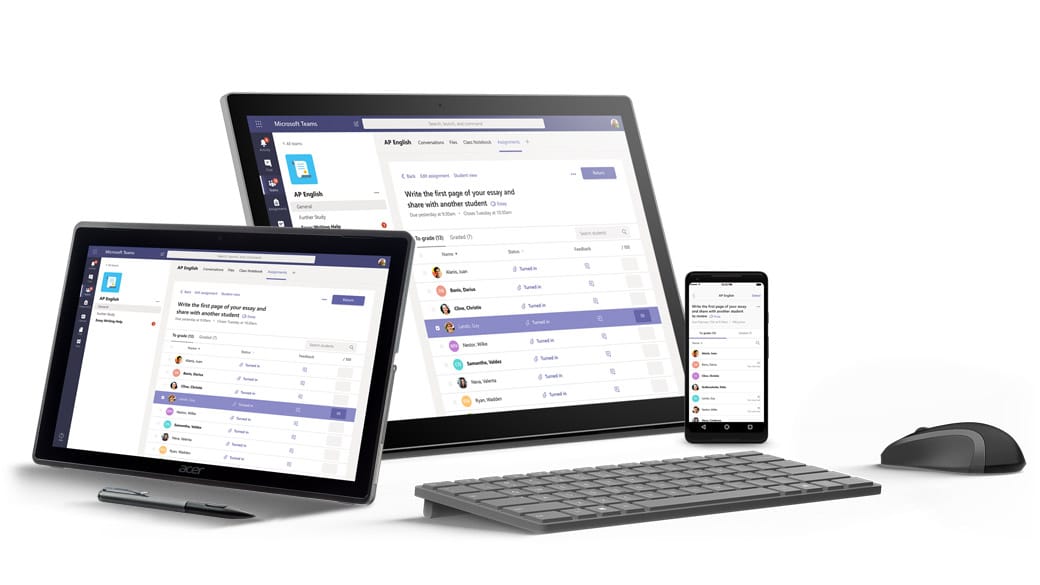
Microsoft Teams channels are the backbone of team communication and collaboration within the Microsoft Teams platform. Essentially, a channel is a discussion board within a team, dedicated to a specific topic or project. Channels allow team members to share files, have conversations, and collaborate on documents in real-time.
There are two types of channels in Microsoft Teams : standard and private. Standard channels are visible to all team members, while private channels are limited to specific members of the team. Private channels are useful for discussing sensitive information or projects that only a subset of team members should have access to.
Understanding the types of channels available in Microsoft Teams is essential to organizing them effectively. By creating channels that are specific to a topic or project, you can keep conversations and files organized and easily accessible for all team members.
Best Practices for Organizing Microsoft Teams Channels
Organizing Microsoft Teams channels is essential to ensure that conversations and files are easy to find and access. Here are some best practices to follow when organizing Microsoft Teams channels:
● Create a Naming Convention for Channels
Having a consistent naming convention for your channels will make it easier to find specific channels and understand what they are for. Use clear and descriptive names that reflect the topic or project the channel is dedicated to.
● Use Tags and Mentions to Categorize Channels
Use tags and mentions to categorize channels into groups. For example, if you have several channels related to marketing, you can use the tag “#marketing” to group them together. This makes it easier to find all the channels related to a specific topic quickly.
● Use Channel Folders to Group Channels
If you have many channels in your team, consider using channel folders to group channels together. Channel folders allow you to organize channels by project, department, or any other category that makes sense for your team.
● Archive or Delete Unused Channels
It’s essential to regularly review your channels and archive or delete channels that are no longer in use. Archiving channels will keep them accessible for reference purposes, while deleting channels will remove them from your team’s view entirely.
Need detailed guidance on archiving? Learn how to archive inactive channels properly to keep your workspace clean while preserving important historical data.
How Team Master Can Help Organize Microsoft Teams Channels
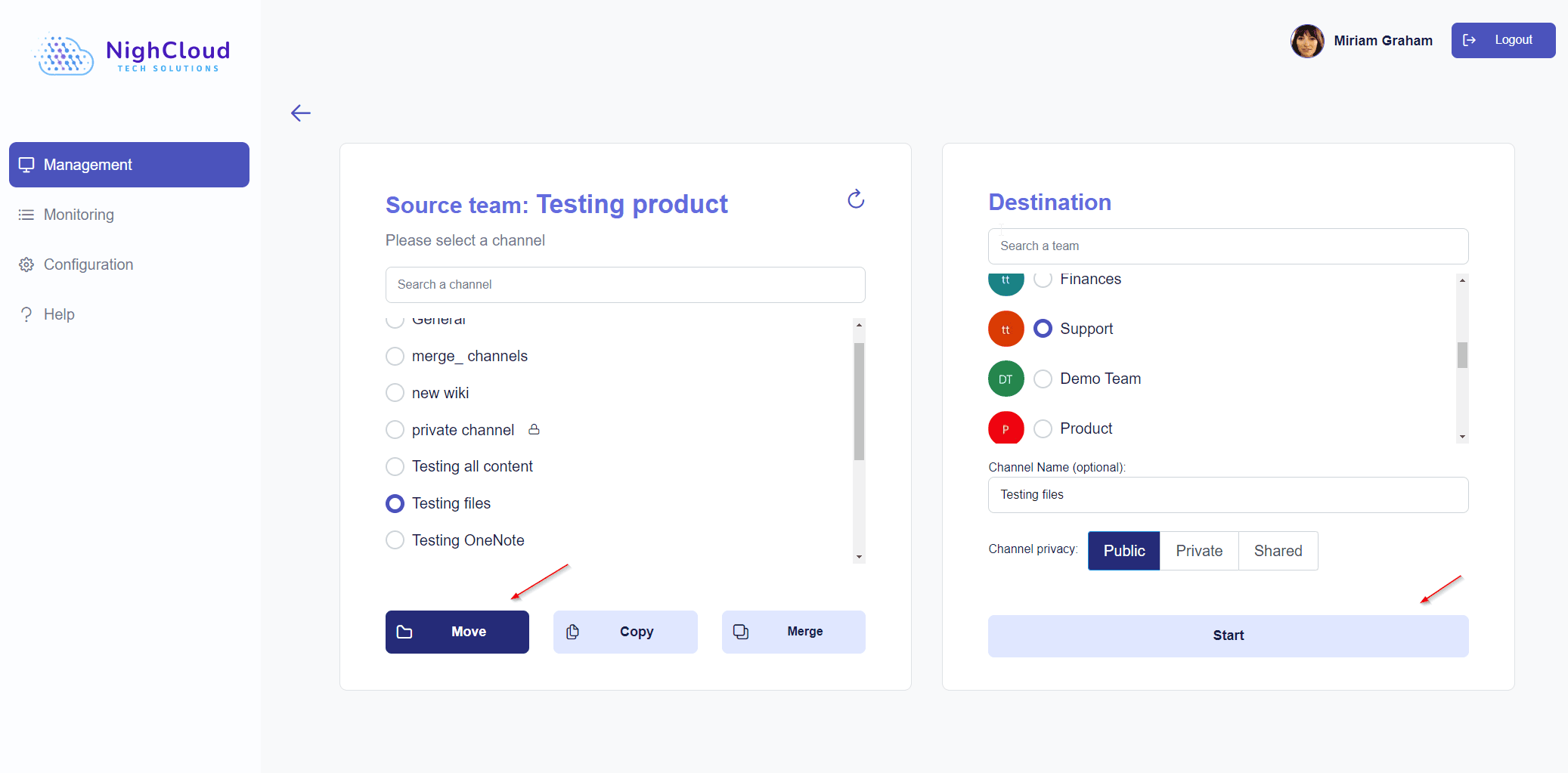
NightCloud’s Team Master is a powerful and affordable hybrid team communication and collaboration platform designed to streamline your team’s workflow. With a price that sets it apart from its competitors, Team Master is the perfect solution for businesses looking to maximize efficiency without breaking the bank.
Team Master features an intuitive interface that makes managing multiple teams and channels within Microsoft Teams a breeze. Whether you’re looking to copy, move, archive, or merge channels, our user-friendly platform has got you covered.
Benefits of Using Team Master for Microsoft Teams
Using Team Master for Microsoft Teams offers several benefits, including:
- Streamlined channel management
- Improved productivity and efficiency
- Affordable pricing
- Exceptional support from our dedicated professionals
- Recap of the Importance of Organizing Microsoft Teams Channels
Organizing Microsoft Teams channels can have a significant impact on productivity and workflow. By following best practices and using Team Master, you can optimize your Microsoft Teams channels and achieve greater efficiency.
Try Team Master Today
Get started with Team Master today and experience the benefits of streamlined channel management. See our pricing plans, or schedule a demo to test Team Master in our secure environment. Need help organizing your workspace? Contact us for personalized guidance on optimizing your Microsoft Teams structure.

Jonathan is a Microsoft Teams migration specialist at NighCloud with more than 10 years of experience helping enterprises optimize their Microsoft 365 environments and streamline channel management.